Proxies
The proxies database in Multogram: why proxies are needed, which types and formats are supported, how to add proxies one at a time or as a list, check them and attach them to accounts.
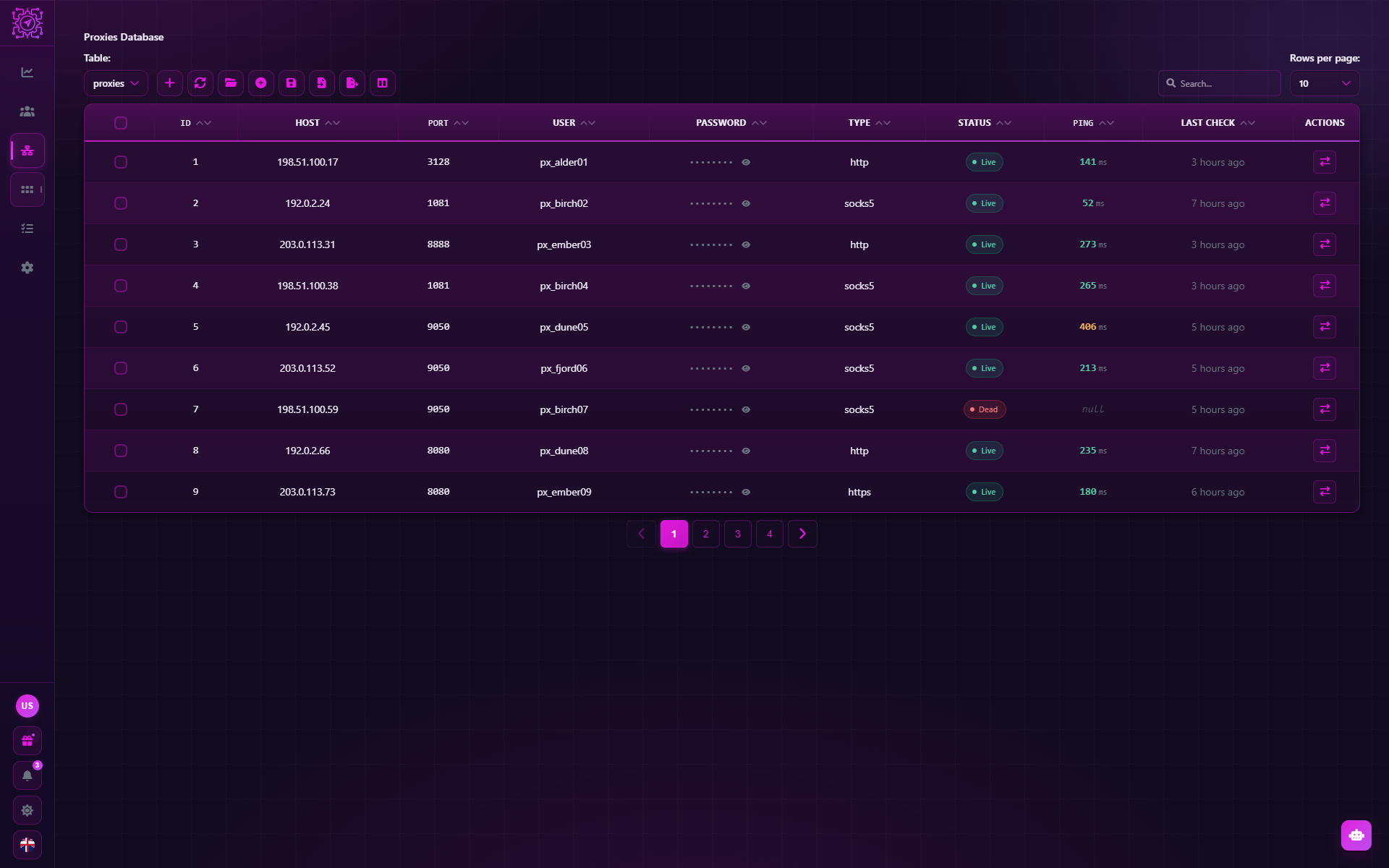
Proxies let each account reach Telegram from its own IP address. When dozens of accounts work from one address, Telegram links them together and restricts them faster. The Proxies tab holds the proxies database, from which proxies are attached to accounts.
The proxies database is available on any plan, including Free.
Which proxies are supported
| Type | When to choose it |
|---|---|
socks5 | The main option for Telegram. The default type |
socks4 | Old proxies without authentication |
http, https | If the seller gave you only HTTP proxies |
A proxy can be with authentication (login and password) or without it.
How to add a proxy
Click + above the table — the Add Proxy window opens with two tabs.
Manual — one proxy: Type, Host, Port, User and Password (the last two — if the proxy uses authentication). You can paste a whole proxy line into any field: the application splits it into the fields itself. A newly added proxy is checked right away.
Bulk — many proxies: one per line, or a JSON array. The import button loads a list from a
.txt, .json or .csv file. Lines without a type use the Default type.
Supported line formats:
1.2.3.4:1080
1.2.3.4:1080:user:pass
user:[email protected]:1080
1.2.3.4:1080@user:pass
socks5://1.2.3.4:1080
socks5://user:[email protected]:1080
Checking proxies
The arrows button in a proxy's row is Check connection. The application sends a request through the proxy and writes the Status, Ping and Last check into the row.
| Status | What it means |
|---|---|
| Unchecked | The proxy has not been checked yet |
| Checking… | The check is running right now |
| Live | The proxy responds. The Ping column shows the latency in milliseconds |
| Dead | The proxy did not respond |
Check many at once. Tick the proxies and click the check button in the row of any of the ticked ones — all of them are checked. Checks run one at a time, and at the end a summary appears: "N of M proxies are live".
How to attach a proxy to an account
- When adding an account — the Attach a proxy switch → From table.
- For an existing account — the Proxy column on the Accounts tab.
- For many accounts at once — the Proxy mass action.
An account stores a reference to a row of the proxies table, and the proxy's data is filled in when a task starts. So if you change the address or password in the proxies table, the attached accounts get the new data at their next run.
If an account's proxy is written with an error and can't be read, the account won't start. The application will not connect it directly, without a proxy — otherwise Telegram would see your real IP address.
You can also enter a proxy right on the account, without the table (Manual in the account window). It is then stored only with that account and does not appear in the proxies table.
Recommendations
- One account, one proxy. This is the main rule. One IP for a dozen accounts reduces the benefit of proxies to almost nothing.
- Mobile and residential are better than server ones. Telegram recognises datacenter addresses and trusts them less. This matters most for Auto Registration and Inviting.
- Proxy country should match the number's country. An account with a number from one country that always signs in from another looks suspicious.
- Don't change an account's proxy without a reason. Constantly changing IPs is also a signal to Telegram. Change it only if the proxy stopped working.
- Check proxies before a big task. A dead proxy won't let an account start, and the thread is wasted.
Common questions
Can I work without proxies?
For one or two of your own accounts — yes. For mass work — better not: all accounts would go online from your IP, and Telegram would quickly link them together.
What happens if a proxy stops working?
An account with this proxy can't connect to Telegram: in a task its thread ends with an error, and the account's status becomes Proxy error. Replace the proxy in the Proxy column or with the mass action.
Is MTProxy supported?
Not in the proxies database: socks5, socks4, http and https are available. MTProxy can only be set
in the built-in messenger, in its own add-account form.
Why does the check say "Live" but the account won't connect?
The check only tells you that the proxy responds. Telegram may reject a particular address, and the account's session may be invalid. Check the account itself with the Check accounts mass action.
Updated
Mass actions
Actions on many accounts from the database at once: checking accounts and spam restrictions, changing the profile, the 2FA cloud password and ending other sessions, attaching proxies and exporting accounts as .session + .json or ZIP.
Tasks
How to run modes in Multogram: creating a task, choosing accounts and threads, schedule and auto-stop, statuses, task cards, the monitor with its log and statistics.