AI in Multogram
Two kinds of AI in Multogram: text generation in modes — with the built-in Multogram AI, paid from the plan's AI credits, or with your own OpenAI, Anthropic, Google, OpenRouter or custom server key — and the built-in AI assistant that answers questions and takes actions in the application.
Multogram has two different AIs, and they are easy to mix up:
| AI in modes | AI assistant | |
|---|---|---|
| What it does | Writes the texts of messages, comments, replies and posts | Answers questions about Multogram and takes actions in the application |
| Where it is set up | The AI tab | Nothing to set up |
| How it is paid for | Multogram AI — with the plan's AI credits, no key. Other providers — with your key, you pay the provider directly | Included in the plan, spends AI credits |
| Where it is used | Mailer, Comment Bot, Message Editor, Auto Reply, Content Bot | The button in the bottom-right corner of the window |
If you work in your own AI client — Claude, Cursor, VS Code, Codex — it can also be connected to Multogram: see AI agents (MCP).
AI in modes
Modes that write text can generate it with an AI model from your prompt — an instruction for the model. To do this, choose the AI text type in the mode and write a prompt. By default the text is written by Multogram AI — nothing else needs setting up. Another provider with your own key is chosen on the AI tab. The setup is shared: done once, it works in every mode.
The fields of the AI tab appear only when AI is selected in at least one mode. If the tab is empty, first choose the AI text type in the mode you need.
Multogram AI
The built-in AI works through the Multogram server under your account: no key is needed, and every request spends the plan's AI credits — the same ones the AI assistant uses. The balance is shown on the Dashboard.
There is no model to choose: the Multogram server picks it — the base one by default, 1 credit per token. One short message is a few hundred tokens, that is a few hundred credits.
Multogram AI works while you are signed in to your Multogram account: tasks with AI run under the account the application is open with.
Provider and model
| Parameter | What to enter |
|---|---|
| AI Provider | Multogram AI (the default), OpenAI, Anthropic, Google, OpenRouter or Custom |
| OpenAI / Anthropic / Google / OpenRouter Model | A model of the chosen provider |
| Custom OpenRouter Model | Any model from the OpenRouter website, written as it is there, for example vendor/model-name. Appears when you choose Custom model… |
| API Key | The key from the provider's account. Needed for OpenAI, Anthropic, Google and OpenRouter |
OpenRouter is one key for models from many companies. Each model in the list shows its price per
million input and output tokens. A free model (with :free in its name) can be entered as a custom one:
such models are often overloaded or disappear from the catalog. If you append
:floor to your custom model's name, the request always goes to the cheapest provider of that model.
Pick the model explicitly
If the task log shows "AI is unavailable: … has no model selected", open the model list and pick a model, even if the one you need is already shown. Until you pick it yourself, the field may stay empty.
Generation parameters
Advanced Settings — off by default, in which case the provider uses its own values.
| Parameter | Default | What it does |
|---|---|---|
| Max Tokens | 4096 | The limit on the answer's length. Allowed 1–200,000. For messages and comments 300–800 is enough |
| Temperature | 0.7 | The model's "creativity": 0 — predictable and uniform, 2 — as varied as possible. For mailings 0.7–1.0 works well |
Request Timeout (sec) — how many seconds to wait for the model's answer to one request: 60 by default, allowed 1–600. It applies to every provider, including Custom, and does not depend on Advanced Settings. If no answer arrives in time, the application aborts the request and repeats it (see below). Increase the value for long texts and slow models.
Custom server
The Custom type is for any service with an HTTP API that is compatible in request format, for example your own local model.
| Parameter | What to enter |
|---|---|
| Request URL | The address to send the request to, for example https://api.example.com/v1/chat/completions |
| Request Headers (JSON) | Headers in JSON format — usually the content type and the access key |
| POST Data (JSON) | The request body. The place for the prompt is marked with {{message}} |
{
  "model": "your-model",
  "messages": [
    { "role": "user", "content": "{{message}}" }
  ]
}
How to write a prompt
A prompt is an instruction for the model. A good prompt is short and specific:
- Who writes and to whom. "You are a friendly manager of a coffee shop. Write a direct message to a customer."
- What the text must contain. An offer, a link, a call to action.
- Constraints. Length ("no more than 300 characters"), language, style, "no emoji", "no greeting like 'Dear Sir'".
- Answer format. "Reply with the message text only, no explanations" — otherwise the model may send "Here is a version of the message: …".
Write a short direct message (up to 250 characters) inviting the reader to our Telegram channel about travel.
Friendly, informal tone. One link: https://t.me/example. No hashtags.
Phrase it differently every time. Reply with the message text only.
The model writes a new text for each send, so the messages come out different — this helps stay clear of spam filters.
What happens if the AI doesn't answer
A temporary failure is handled by the application itself. If the server limits the pace of requests, is overloaded, doesn't answer within the Request Timeout, can't be reached or sends an empty answer, the request is repeated after a pause — up to 4 attempts. The pauses grow from a few seconds to a minute, and are longer when the pace is limited. Every repeat is noted in the log with an "AI request attempt N failed: … Trying again shortly." line.
If the request never succeeds, or the provider refuses for good, the log shows an "AI is unavailable: …" line with the reason, and the task's thread stops with an error. Refusals for good are a wrong key, no money on the provider account, the plan's AI credits used up. Nothing is sent: the application never sends the prompt itself instead of an answer.
How much it costs
Multogram AI is paid with the plan's AI credits (see Multogram AI). When the period's credits run out, tasks with AI stop with "the AI credits of your plan are used up for this period — they renew on …" with the date they renew.
With other providers you pay for generation — to the provider, at its rates. The price depends on the model and the length of the text. One short message is hundreds of tokens, so even thousands of messages on an inexpensive model usually cost little. Check the exact prices on the provider's website.
AI assistant
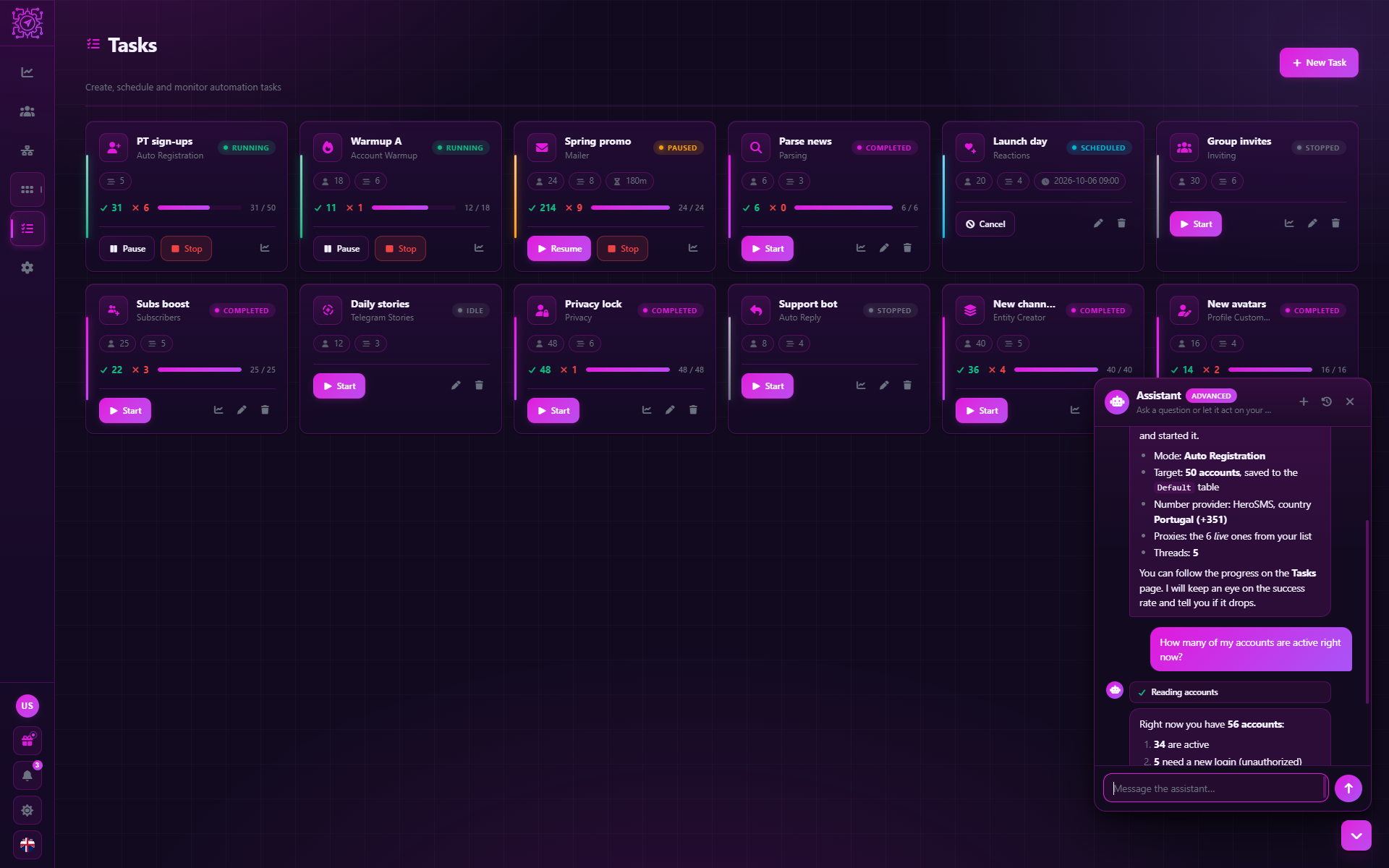
The Assistant is a built-in chat: the button in the bottom-right corner of the application window. It knows Multogram and answers questions about it, and on the Pro and Max plans it also takes actions for you.
| Level | Plan | What it can do |
|---|---|---|
| Basic | Free | Answers questions. You take the actions in the application yourself |
| Advanced | Pro, Max | Answers and acts: creates and runs tasks, adds accounts and proxies, creates templates, opens the right sections and fills in fields |
What you can ask:
- "How do I add accounts?", "How to use proxies?"
- "Show my running tasks"
- "Start a mailer task" — on the advanced level
- "Create a welcome message template" — on the advanced level
Some steps the assistant can't take by itself — for example, signing in to a Telegram account where an SMS code is needed. It then opens the right window with the fields already filled in, and you enter the code.
If the assistant can't solve the problem, it offers to Send ticket to support: the form opens with the text already written, and you check and send it.
AI credits
Each request to the assistant spends AI credits. The credit allowance depends on the plan and is renewed every period; the balance is visible on the Dashboard and in your account on the website. The advanced level spends more credits per request. The modes that write texts with Multogram AI spend the same credits. When the credits run out, the assistant stays silent and such modes stop until the next period starts.
The assistant works only after you sign in to your Multogram account. Before sign-in the conversation is stored only on this computer.
Common questions
Why is the AI tab empty?
Its fields appear only when the AI text type is selected in some mode. Select it in a mode, and the settings appear.
Do I need my own key?
No. Both the assistant and Multogram AI in modes work through the Multogram server and spend your plan's AI credits. Your own key is needed only if you choose another provider on the AI tab.
Which model should I choose?
For Multogram AI the server picks the model. With other providers fast, inexpensive models are fine for short messages and comments — for example, light models via OpenRouter. Stronger models are needed if the text must be long or especially natural, for example when rewriting posts in Content Bot.
Why did a task stop with an "AI is unavailable" error?
The AI didn't answer with text on any attempt, or refused for good. For example: a wrong or empty key, the money on the provider account or the plan's AI credits ran out, no model selected, the service is unavailable for long. The text after the colon names the reason. Fix the setting on the AI tab and start the task again.
Does the assistant answer in other languages?
The assistant answers in the language of the question.
Updated
Texts and templates
How Multogram builds the text of messages, comments and posts: text types (static, list, dynamic, AI, forwarded, templates), the visual editor with formatting and attachments, message templates, generation templates and spintax, keyword fields.
Application settings
The Settings tab in Multogram: interface theme, language and colors, field value presets, general run parameters, contacting support and information about the application.