Application interface
How the Multogram window is laid out: the left panel with sections, the sliding Automation list of modes, the Dashboard with statistics, notifications, profile and the AI assistant.
The Multogram window consists of a narrow left panel with sections and a work area on the right. Everything you do is moving between the panel's sections and working on the open tab.
Left panel
From top to bottom:
| Section | What's there |
|---|---|
| Dashboard | Overview: profile, plan, statistics, recent tasks |
| Accounts | The Telegram accounts database |
| Proxies | The proxies database |
| Automation | A sliding list of every mode |
| Tasks | Creating and running tasks |
| Settings | Appearance, presets, support |
The logo above the sections takes you back to the Dashboard. At the bottom of the panel are your profile, the theme switch and the language selector.
The Automation list of modes
The Automation button slides out a list of every mode: Auto Registration, Mailer, Comment Bot, Reactions Booster and the rest. At the end of the list are Modules and Modules Constructor.
A mode that is not in your plan is marked with a lock:
- Unlock — the mode can be bought on its own, for good. The button opens the purchase page on the website.
- Included in the Pro / Max plan — the mode is not sold separately and comes only with the plan.
After purchase the mode unlocks in the application by itself — usually right away, at worst after a restart.
Mode tab
Each mode has its own tab with settings grouped into blocks. A few rules that apply everywhere:
- Fields appear and hide. Many fields are visible only for a certain choice above them: for example, the prompt field appears only when the text type is AI. Can't find a field from the documentation? Check the switches above it.
- Lists take one value per line. One target, one variant, one link per line.
- "From — to" ranges. Delays are set with two numbers, and each time a random value between them is taken.
- Required fields are marked. A task won't start without them.
- Values are saved automatically — after an application restart the fields stay filled in.
At the bottom of the tab is the Run task panel with a counter of filled-in settings. It opens the new task window with the mode already selected.
Dashboard
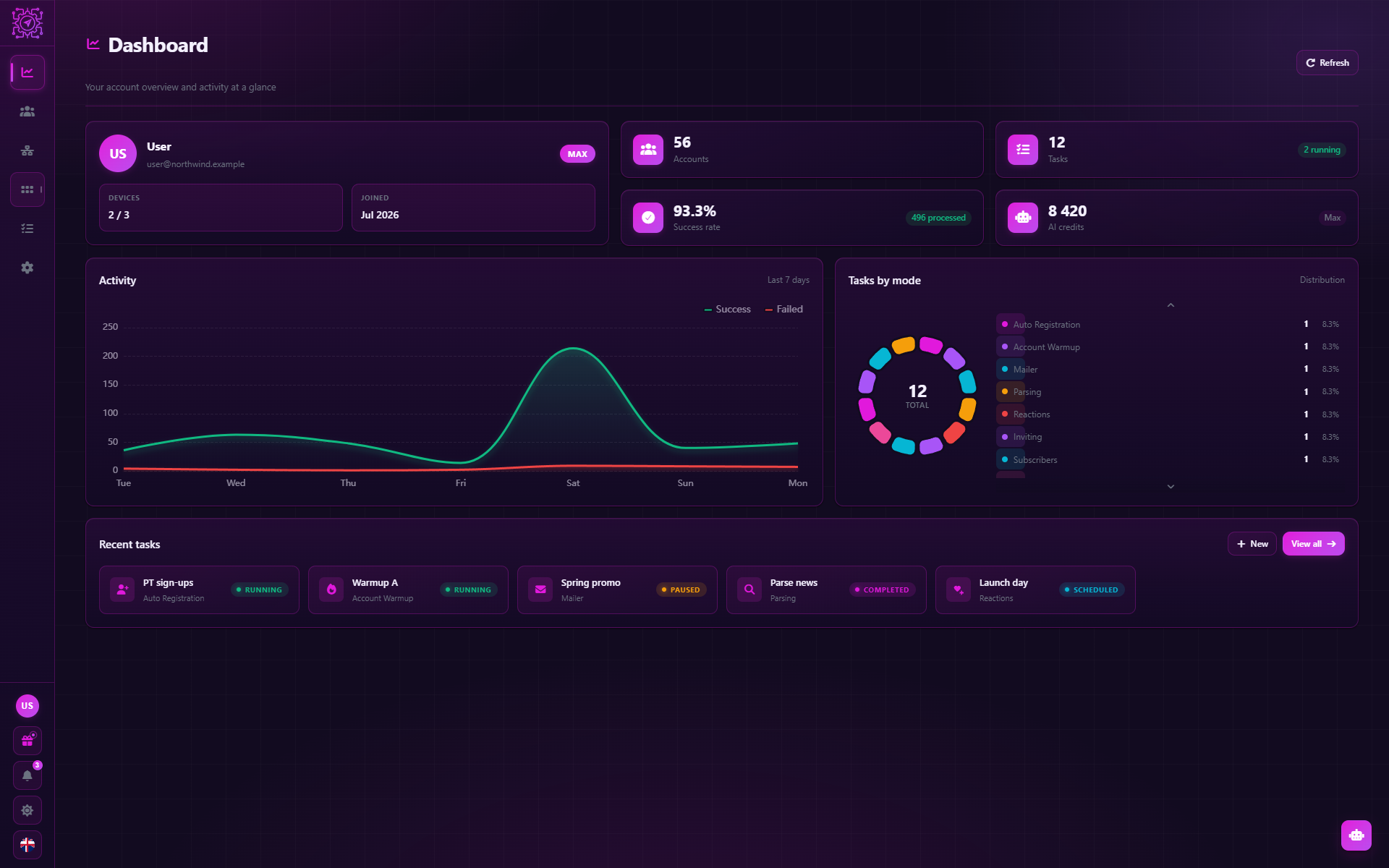
The first tab is an overview of the account and the work:
- Profile — name, email, role, number of devices, sign-up date.
- Tiles — the number of accounts in the database, remaining AI credits, tasks (running and completed), the success rate.
- Activity — successful and failed runs over the last 7 days.
- Tasks by mode — which modes you run most often.
- Recent tasks — the five latest tasks, the New and View all buttons.
The Refresh button reloads the data.
Profile
Click your profile at the bottom of the left panel:
| Item | What it shows |
|---|---|
| Plan | The current plan and its end date. Manage plan opens the website |
| Devices | How many device slots are taken. Manage devices opens the website |
| This device | A short ID of this computer |
| Referral code and Balance | Your invitation code and partner balance in dollars |
| AI credits and version | The assistant's remaining credits and the application version |
| Sign out | Sign out of the Multogram account |
Notifications
The bell with an unread counter is the notification center: payments, plan expiry, support replies, offers and news. It is the same feed as on the website: what you read in the application counts as read there too.
The All and Unread filters, the Mark all read button and All notifications — the full feed. If a notification has a button, it opens the relevant page in the browser.
AI assistant
The button in the bottom-right corner of the window opens a chat with the assistant. It answers questions about Multogram, and on the Pro and Max plans it takes actions itself: it creates tasks, adds accounts and fills in fields. Details in AI in Multogram.
An indicator appears above the assistant button while a mass action is running.
A gift for new accounts
A new account can get 14 days of the Pro plan for free, once. The offer appears in the application by itself, and if you postpone it, a gift icon stays in the left panel while the offer is available. More in Plans.
Separate windows
Some tools open in their own window: the Messenger, running a module and the Modules Constructor.
Common questions
Why does a mode in the list have a lock?
It is not in your plan. Unlock the mode with the Pro or Max plan or buy it on its own — for good. Details in Plans.
How do I change the theme and language?
The switches at the bottom of the left panel, or Settings → Appearance.
Where can I see how many AI credits are left?
On the Dashboard — the AI credits tile — and in your profile.
Updated
Installation and sign-in
Multogram system requirements, where to download the installer and how to verify its checksum, installing on Windows, first sign-in, device linking, the Pro trial and application updates.
Glossary
Plain explanations of the words used in Multogram and Telegram: session, tdata, pool, thread, task, coordinator, module, scenario, resource, MCP, FloodWait, spam block, proxy, 2FA, invite link, spintax, prompt, device slot and more.