Application settings
The Settings tab in Multogram: interface theme, language and colors, field value presets, general run parameters, contacting support and information about the application.
The Settings tab is the last one in the left panel, with a gear icon. Sections are on the left, and at the top is Search settings: it finds a field across all sections at once.
| Section | What's inside |
|---|---|
| Appearance | Interface theme, language, colors, shape and density |
| Presets | Saved field values applied in one click |
| General | Run parameters and file locations |
| Support | Contacting support right from the application |
| About | Version, device, account and plan |
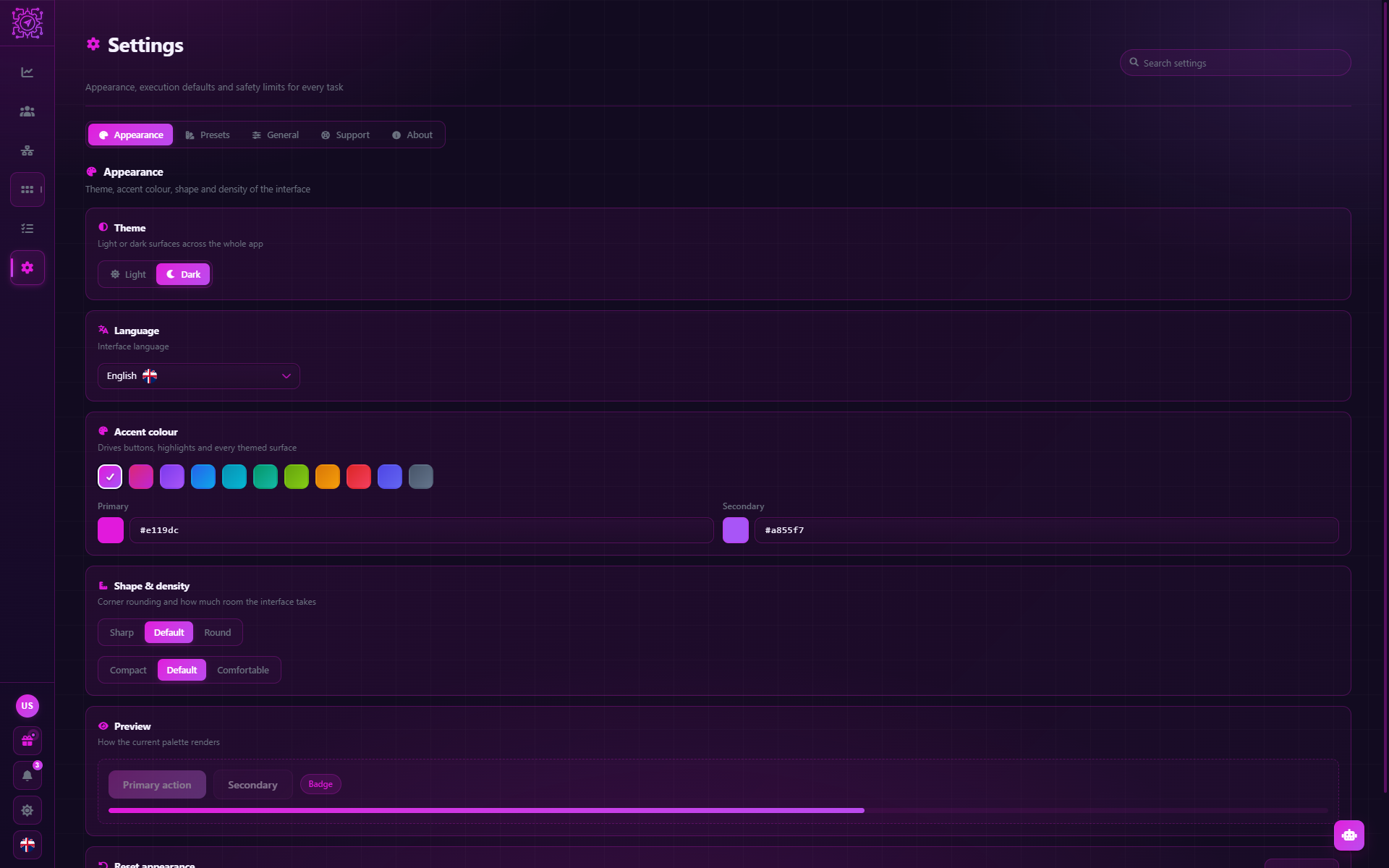
Appearance
| Parameter | What it does |
|---|---|
| Theme | Light or Dark |
| Language | The interface language: Russian, English, Ukrainian, Chinese, Hindi |
| Accent colour | The color of buttons, highlights and colored elements. There are ready color pairs and your own choice — Primary and Secondary |
| Shape & density | Corners — Sharp, Default, Round. Density — Compact, Default, Comfortable |
| Preview | How the current palette renders |
| Reset appearance | Return the theme, colors, shape and density to their defaults |
The theme and language can also be switched on the sign-in screen, before signing in.
Presets
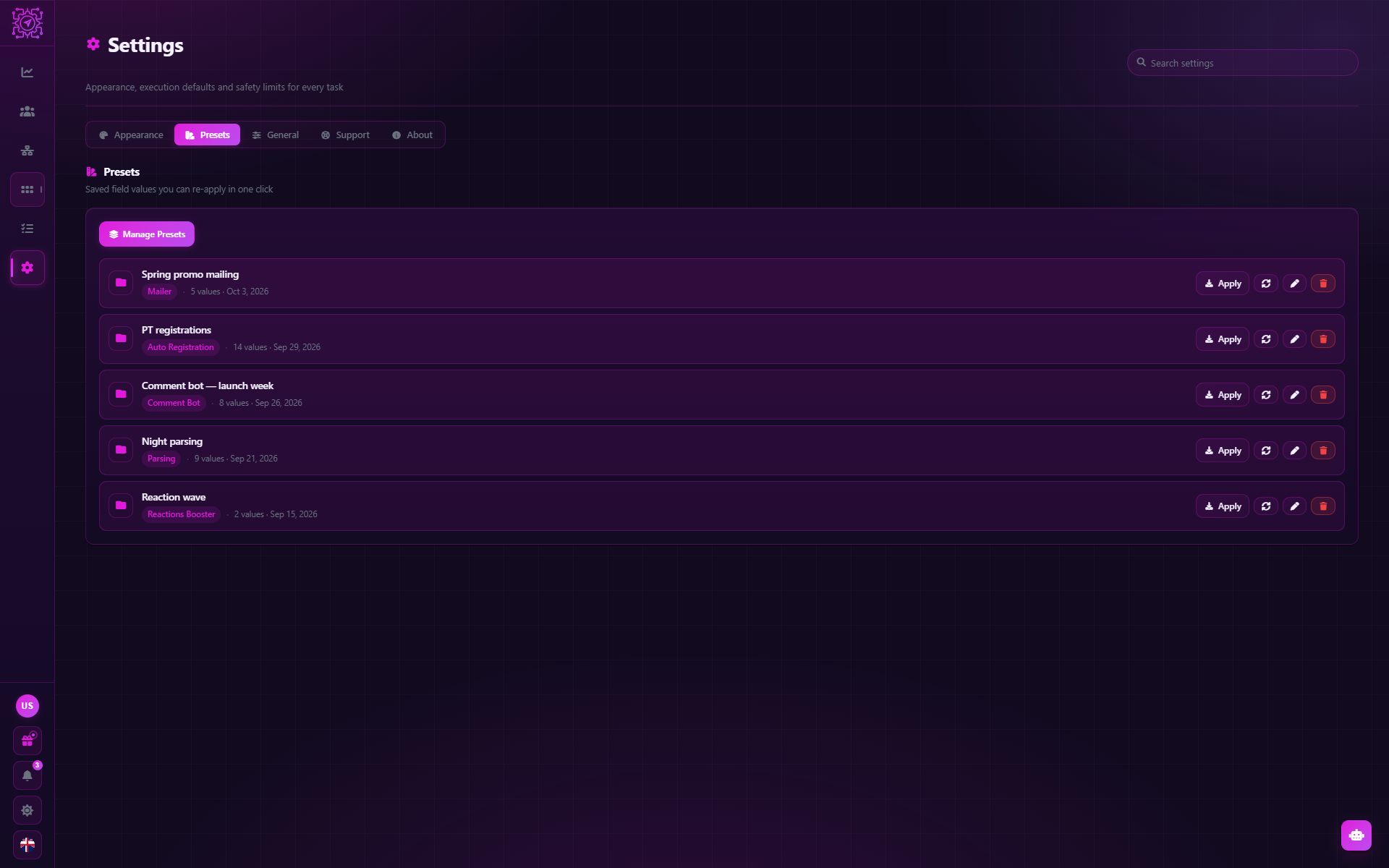
A preset is a saved set of field values. Fill in a mode tab once, save it, and later bring those values back with one click instead of typing everything again.
- Preset scope: Mode — the fields of one tab, or All modes — the fields of all tabs at once.
- Save current values — creates a preset from what is entered right now.
- Apply — puts the preset's values into the fields.
- Overwrite with current values, Rename, Delete — managing a preset.
The list of presets is visible in the Presets section, full management is behind the Manage Presets button. Presets are stored on this computer.
When presets are most useful
When one mode is run with different sets of settings: for example, a mailing to two different lists with different texts. Save both sets and switch between them before starting a task.
General
| Parameter | Default | Description |
|---|---|---|
| Session idle timeout (sec) | 120 | After how many seconds of idleness to close an account session that no running task holds. While a task runs its sessions are not closed; when a thread ends, its session is released right away. Allowed 10–3600 |
| Pause account on FloodWait | On | What an account that gets a FloodWait does. On — it stops working in this task (the other accounts continue). Off — it waits out the restriction up to 15 minutes and continues; a longer FloodWait stops the account anyway |
| Logs Folder | The application's data folder | Where to write each task's log as a readable text file |
FloodWait: what happens to the account
A FloodWait is Telegram asking you to wait N seconds. The application waits out a few seconds by itself and repeats the action. A longer wait is decided by the Pause account on FloodWait setting:
- on — the account stops working in the task, and its thread ends with an error and a reason;
- off — the account waits (up to 15 minutes) and continues from where it stopped.
In Mailer its own setting applies instead of the general one — Stop on FloodWait on the mode tab. Work the account didn't get to is not lost where the targets are shared: a Mailer or Parsing target goes back into the list, and another account takes it. An account whose session Telegram revoked or which is banned always stops working in the task — its next actions wouldn't go through anyway. How to reduce the number of FloodWaits is in Telegram limits.
Task log file
Each task writes its own log to the Logs Folder — a <task title> <date_time>.log file, one
line per entry: time, level, thread number, account label and text. The entries are in the interface
language at the moment the task started. The file appears when the task starts and is appended while it
runs; you can open it in any text editor to go over a run after it ends.
The file gets the entries of all the task's threads — including the ones the mode starts to help the main ones (for example,
releasing a number during auto registration).
Support
- Create a ticket — opens the ticket form right in the application: subject, category and description. The encrypted technical log of this installation is attached to the ticket automatically — it helps support find the cause.
- My tickets — opens the Tickets section of your account on the website. Support replies arrive there.
More in Support.
About
The application version, this device (a short ID and the system), the account you are signed in with, and your plan. This information comes in handy if support asks which version you have.
Common questions
Where do I change the interface language?
Settings → Appearance → Language. The language can also be chosen on the sign-in screen.
Are mode settings kept after a restart?
Yes. Field values on mode tabs are saved automatically. Presets are not for saving, but for quick switching between different sets of values.
Will presets move to another computer?
No, presets are stored locally. On a new computer they have to be created again.
Updated
AI in Multogram
Two kinds of AI in Multogram: text generation in modes — with the built-in Multogram AI, paid from the plan's AI credits, or with your own OpenAI, Anthropic, Google, OpenRouter or custom server key — and the built-in AI assistant that answers questions and takes actions in the application.
Modes overview
Every Multogram automation mode in one table: what each mode does, which plan it is in, whether it needs accounts and how the work is split. How to choose a mode for the job and the general rules all modes follow.