Tasks
How to run modes in Multogram: creating a task, choosing accounts and threads, schedule and auto-stop, statuses, task cards, the monitor with its log and statistics.
A task is one run of a mode: which mode, on which accounts, in how many threads and when. The mode's own settings are filled in on its tab, while the task is responsible for running it. Until a task is started nothing happens: a filled-in mode tab is only preparation.
All tasks are collected on the Tasks tab. The latest of them are also visible on the Dashboard.
How to start a task
Two ways, the same result.
From the mode tab. At the bottom of every mode's tab is the Run task panel with a counter of filled-in settings. Click it — the new task window opens with the mode already selected.
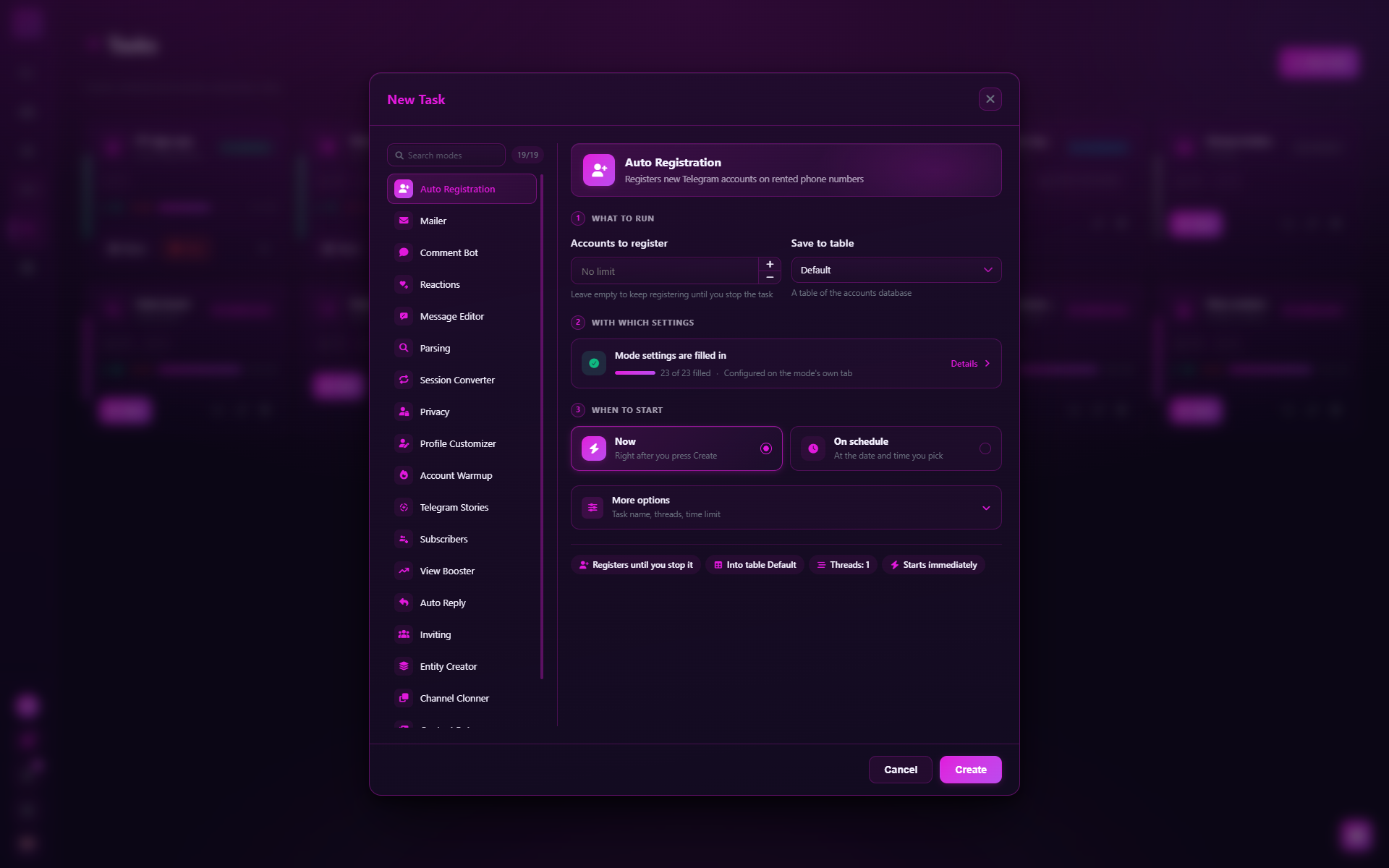
From the Tasks tab. Click New Task, pick a mode in the list on the left (there is Search modes) and set up the task on the right.
What to run. Pick a mode. Modes not available on your plan are marked with a lock and an Unlock button.
With which settings. The Mode settings block shows how many settings are filled in and whether any required ones are missing. Show the values this task will run with opens the full list with search.
Accounts. Tick the accounts from the accounts database the work will run on.
When to start. Now — right after you click Create; On schedule — at the date and time you pick; Manual — later, with a button on the task card.
More options. Task title, Threads and Stop after (min). At the bottom of the window is a summary of what will be run. Click Create.
Settings are read at start
A task reads the settings from the mode tab when it starts, not when it is created. If you created a scheduled task and then changed the mode's settings, it will start with the new ones. A task that is already running is not affected by changes.
Accounts and threads
A thread is one line of work. Usually one thread works with one account: it takes it from the selected ones, runs the mode and moves on to the next account, if any are left.
| Modes | Accounts | Threads |
|---|---|---|
| Most modes | Several, your choice | As many as you like, but no more than the selected accounts. An empty field means one thread per account |
| Comment Bot in Watcher mode | Several | Always one thread per account |
| Channel Clonner, Content Bot | One | Always one |
| Message Editor | Not needed | Always one |
| Converter | Not needed — or picked on its tab, to convert accounts of the database | Always one |
| Auto Registration | Not needed — accounts are created | The number of parallel registrations |
| Modules | Set in the module's settings | The number from the field, 1 by default |
How many threads to set. More threads are faster, but they load the computer more and make the activity more visible to Telegram. For a first run 1–3 threads are enough: check how the work goes, and only then increase.
For Auto Registration the task window also asks Accounts to register (empty — until you stop it) and Save to table — which table of the accounts database to write the new accounts to.
Schedule and auto-stop
- On schedule. The task waits with the Scheduled status and starts by itself at the set time. The schedule survives an application restart. If the application was closed at the scheduled time, the task starts right away the next time it is opened. To cancel the schedule, use the Cancel button on the card.
- Stop after (min). The task stops by itself after the given number of minutes — handy for modes with no natural end, such as Auto Reply or Watcher in Comment Bot. An empty field means no limit.
Task statuses
| Status | What it means |
|---|---|
| Idle | The task is created and waits to be started manually |
| Scheduled | Waiting for its start time |
| Running | Working |
| Paused | On pause; continue with the Resume button |
| Stopped | Stopped by you, by the timer or because the application was closed while it ran |
| Completed | All the work is done |
| Error | The task could not start or was interrupted by an error |
Task card
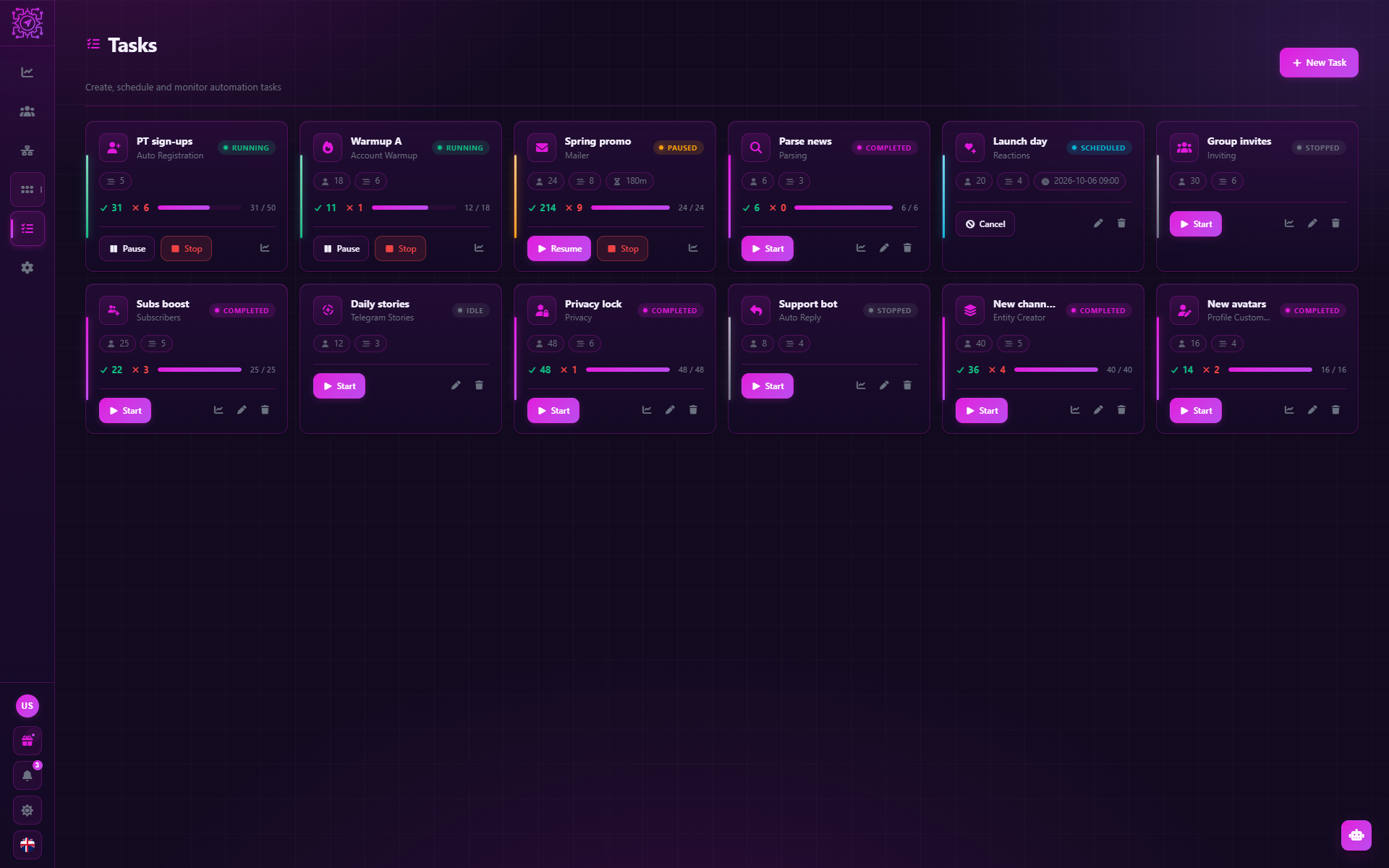
Each task is a card on the Tasks tab. The color of the stripe on the left shows the status; the card shows the mode, the number of accounts and threads, and the progress.
| Button | What it does |
|---|---|
| Run | Starts the task (or starts it again) |
| Pause / Resume | Pauses and resumes the work |
| Stop | Stops the task |
| Edit | Opens the task window for editing |
| Cancel | Cancels the schedule |
| Performance | Opens the task monitor |
| Delete | Deletes the task. This can't be undone |
Task monitor
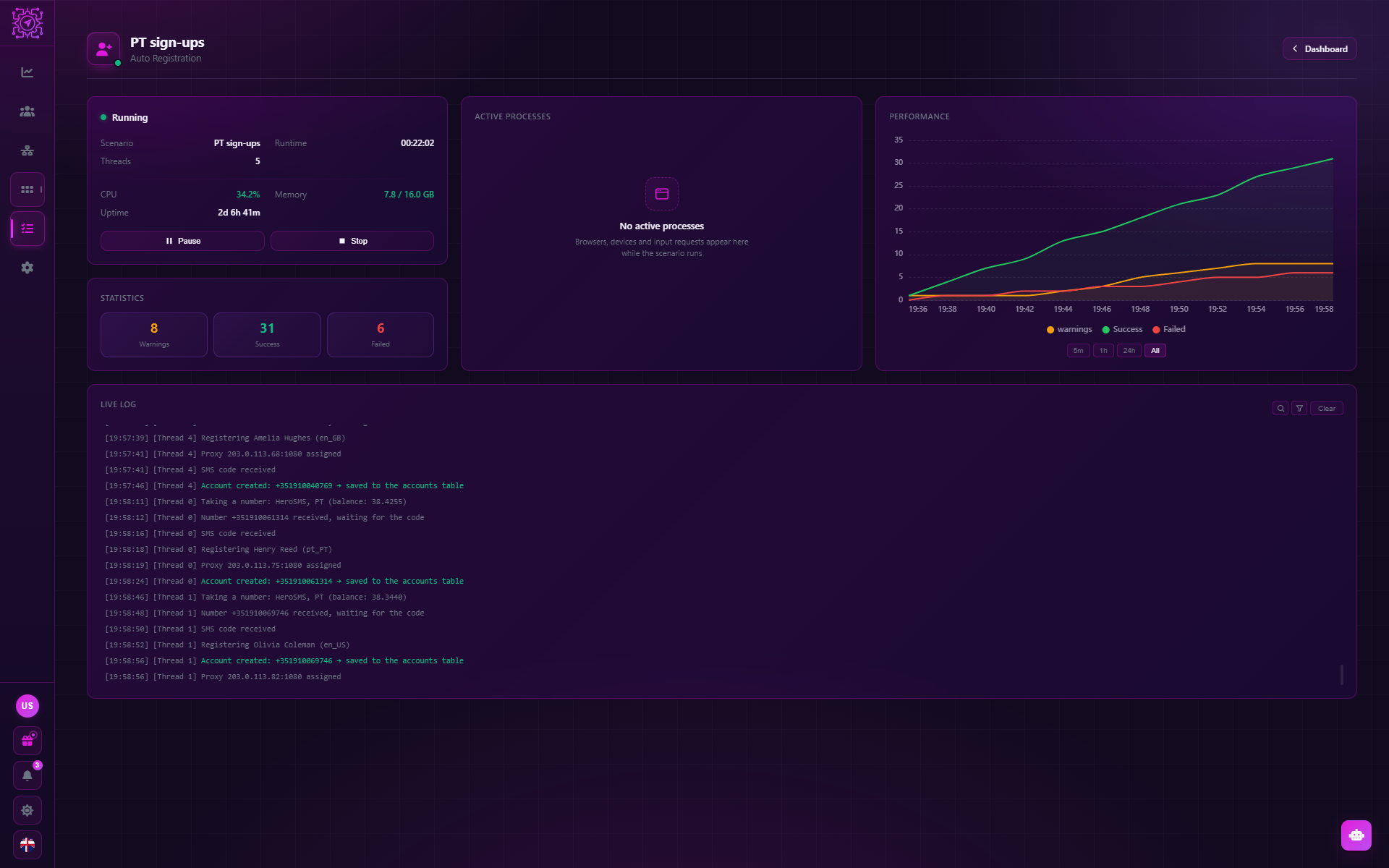
Click the card of a running task or Performance — the monitor opens:
- Live Log — what the task is doing right now. Each line of a mode starts with the account's number,
for example
[+79001234567], so you can see which account is doing what. - Active Processes — the threads and their state: running, waiting, completed, error.
- Statistics — Successful, Failed, Warnings and a chart for 5 minutes, an hour, a day or all time.
- Performance — CPU load, memory and runtime.
- The Pause, Resume, Stop and Restart buttons — the last one starts the task again right in the monitor.
The log is written in the interface language. The monitor is also available after the task finishes — until the application restarts. To go over a run later, open the log file: each task writes one to the Logs Folder — see Task log file. The application's technical log is a different one: it is stored encrypted and is attached to a support ticket automatically.
Errors in the log are normal
A failure on one target doesn't stop the task: the error is written to the log, and the work goes on. Look not at the fact of errors but at their share. If there are more errors than successes, stop the task and find the cause — hints are in Troubleshooting.
Plan check at start
Before every run the application asks the server whether this Multogram account may run this mode on this computer. That is why starting a task needs an internet connection. If the server is unreachable, the last answer received stays valid for a while, and after that the start is refused.
If a start is refused, the reason appears on the task card: the mode isn't in the plan, there is no free device slot, there is no connection to the server and so on. The explanations are in Errors and messages.
Recommendations
- Start small. The first run of any mode — on 1–3 accounts and a short list of targets.
- Watch the share of errors in the monitor during the first minutes of work.
- Don't run several heavy tasks on the same accounts at once — to Telegram this looks like a sudden burst of activity.
- Give tasks names. A week later "Mailer 3" says nothing, while "Chat mailing — clients" does.
- Save settings that worked into presets — Settings → Presets.
Common questions
Why doesn't a task start?
Common reasons: required settings on the mode tab are not filled in, no accounts are selected, the mode is not in the plan, or there is no connection to the server for the plan check. The reason is written on the task card.
Why are there fewer threads than I set?
There can't be more threads than selected accounts. And Channel Clonner, Content Bot, Message Editor and Converter always work in one thread.
Can I change the settings while a task is running?
You can change the fields on the mode tab, but the running task won't see them: it works with the settings it had at start. To apply the new ones, stop the task and start it again.
Does a task keep running if I close the application?
No. Tasks run on your computer, inside the application. After closing, running tasks get the Stopped status. Scheduled tasks are kept and start the next time the application is opened.
How do I stop a task that runs forever?
Click Stop on the card or in the monitor. To make the task stop by itself, fill in Stop after (min).
Where can I see what a task did yesterday?
A task's log is visible in its monitor until the application restarts; after that it is no longer available there. What stays on disk are the results the modes write themselves: Parsing files, the database of sent messages of Mailer and Comment Bot, the new accounts of Auto Registration.
Updated
Proxies
The proxies database in Multogram: why proxies are needed, which types and formats are supported, how to add proxies one at a time or as a list, check them and attach them to accounts.
Messenger
The built-in Multogram messenger: several Telegram accounts open at once, chatting from any of them in one click, reading without the read mark, editing the profile and privacy of a single account.