Mailer
The Mailer mode in Multogram: direct messages to recipients from a list, sent from your Telegram accounts. Six text types, delays, saving sent messages for later editing, how recipients are distributed and how to avoid spam block.
Where in the app
Access
Accounts
Restriction risk
Mailer sends direct messages to the recipients on your list on behalf of the selected accounts. The text can be the same for everyone, random from a list, built from a template, written by AI or a forwarded post.
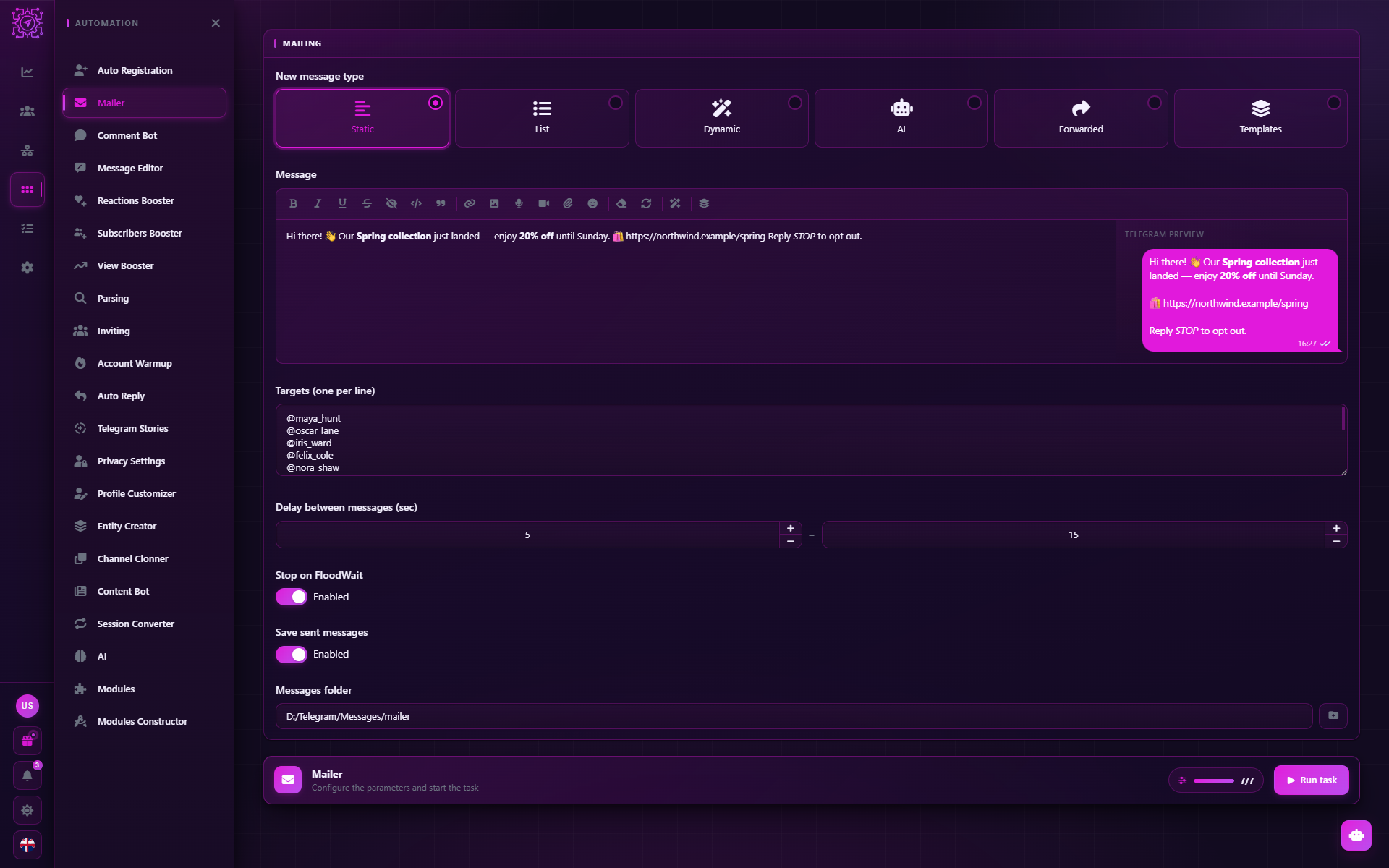
Quick setup
Choose the text type in the Message type field and fill in the field that appears below it.
Paste the recipients into Targets (one per line) — one per line.
Set the delay and, if needed, turn on Save sent messages.
Start the task — the Run task button at the bottom of the tab. Pick the accounts.
Settings
| Parameter | Default | What it does |
|---|---|---|
| Message type | Static | Where the text comes from: Static, List, Dynamic, AI, Forwarded, Templates |
| Message | — | Text with formatting and attachments from the visual editor. For the Static type |
| Message variants (one per line) | — | A set of texts; each send takes a random one. For the List type |
| Dynamic template | — | A template with spintax and tokens. For the Dynamic type |
| AI prompt | — | The instruction for the AI model. For the AI type; Multogram AI writes by default, another provider is set on the AI tab |
| Messages to forward (one per line) | — | Links to posts, for example https://t.me/channel/123. For the Forwarded type |
| Templates | — | Saved message templates. For the Templates type: you can pick several — each send takes a random one |
| Targets (one per line) | — | Recipients: @username, a https://t.me/username link, a phone number +79001234567 or a numeric ID |
| Delay between messages (sec) | 5–15 | The pause before sending; random within the range each time |
| Stop on FloodWait | On | What an account that gets a FloodWait does: on — it stops mailing in this task; off — it waits out the restriction up to 15 minutes and continues. Applies instead of the general Pause account on FloodWait setting |
| Save sent messages | Off | Write what was sent to a database for Message Editor |
| Messages folder | — | Where to save the database. Appears when saving is on |
Each text type, the editor and spintax are described in detail in
Texts and templates. Texts of the List and Dynamic types understand
Telegram's HTML markup: <b>bold</b>, <i>italic</i>, <a href="https://…">link</a>.
How a mailing goes
The Targets list is shared by all accounts of the task. Each selected account works in its own thread and mails while there are recipients on the list: one account, one target at a time.
Recipient — the account takes the next target from the shared list. A taken target disappears from the list right away, so two accounts never write to the same person.
Pause — before each send except the first, a random time from the Delay between messages.
Send — the text is built according to the chosen type. For AI the model writes a new text for each send.
Result — the log shows a success line or the reason for the refusal. With saving on, the message is written to the database. Then the account takes the next target — and so on until the list is empty.
Each target gets exactly one message: 3 accounts and 100 recipients means 100 messages that the accounts split among themselves. When the list is empty, the account writes a summary to the log — how many were sent and how many were not delivered.
A recipient refusal and an account refusal are different things.
- A recipient refusal (strangers are not allowed to write, a wrong
@username, no right to write in the chat) counts as not delivered, and the account takes the next target. - An account refusal (session revoked, account banned, spam block, connection drop, FloodWait) puts the target back at the top of the list — another account will send it — and this account stops working in the task. The exception is a FloodWait with Stop on FloodWait off: the account waits it out (up to 15 minutes) and continues.
The thread of an account that delivered nothing or stopped because of a refusal ends with an error and a reason — in the task statistics it counts under Failed.
Saving sent messages
If you turn on Save sent messages, every successful message is written to an SQLite database
in the Messages folder. If the folder doesn't exist yet, it is created. Each task gets
its own file — <task ID>.db, with the messages in its messages table. The database holds the account, the recipient,
the message ID, the text, the send time and an edit mark.
This database is what Message Editor needs: it opens it and rewrites messages that were already sent from the same account that sent them. Without saving, you won't be able to edit the mailing later.
Risks and limitations
- Spam block. Messages to people who didn't write to you first are the fastest way to spam block. An account with spam block can't write to strangers. Check with the Check restrictions mass action.
- Recipients' privacy. If a person doesn't allow strangers to write to them, the message won't go out: the log shows "The user's privacy settings don't allow this".
- A phone number as a target works only if Telegram allows finding the person by number.
@usernameis more reliable. - FloodWait. If Telegram asks an account to wait, it either stops mailing (Stop on FloodWait on) or waits out the restriction up to 15 minutes; the target isn't lost — another account sends it. Frequent FloodWaits are a sign that the pauses between messages are too short.
- Forwarding from a protected channel doesn't work: if copying is restricted in the channel, Telegram won't let you forward the post.
Recommendations
- Varied texts. A List of 10–20 variants, Dynamic with spintax, or AI — Telegram notices identical messages from many accounts faster.
- Warmed-up accounts. Don't mail from fresh accounts: let them rest and work in a normal way for a few days.
- A proxy of its own for each account. Mailing from one IP links the accounts together.
- A test run. Start with 2–3 accounts and your own recipients, check how the message looks, and only then run it on everyone.
- Careful with links. A link in the very first message to a stranger raises the chance of a report.
- Watch the errors. If the log shows many "Telegram restricted the account for spam", stop the mailing and check the accounts for restrictions.
Common questions
What format should recipients be in?
One per line: @username, a https://t.me/username link, a phone number +79001234567 or a numeric
ID. They can be mixed.
Why were fewer messages sent than there are recipients?
Some recipients refused (privacy, a wrong @username) — they show up in the account's summary as "not
delivered" and in the log with a reason. Or the accounts stopped before the list ran out
(banned, FloodWait with Stop on FloodWait on): the remaining targets weren't sent —
start the task again with other accounts.
When does the delay apply?
Before each send except the first: the account writes to the first target right away, and before each next one it waits a random time from the range.
Can I send a photo or video?
Yes, with the Static and Templates types: attachments are added in the visual editor. The List, Dynamic and AI types send text only.
Why save sent messages?
To fix them later with Message Editor — for example, to replace a link in all the sent messages.
How is "Forwarded" different from a copy?
A forwarded message arrives with a "Forwarded from…" label and a link to the author. A copy can be made with the Static type by pasting the text and media into the editor.
Why didn't the message arrive, with an error in the log?
The errors are explained in Errors and messages. Most often it is
the recipient's privacy, the account's spam block, a wrong @username or FloodWait.
Updated
Account Warmup
The Account Warmup mode in Multogram: imitating ordinary activity of new Telegram accounts — reading posts, subscriptions, reactions and chatting between your own accounts by scenarios. Settings, finding the popular channels of the account's country, the Conversation Builder and why accounts need warming up.
Comment Bot
The Comment Bot mode in Multogram: comments under channel posts from your Telegram accounts. The Commenter writes under found posts, the Watcher monitors channels and comments on new posts right after they are published. Settings, post search, delays and recommendations.