Modules
The Modules tab in Multogram: the library of installed modules (.agm) — ready automation scenarios with their own settings. How to install, run, update and remove a module, which modes a module needs and why it may be unavailable.
Where in the app
Access
Accounts
Restriction risk
A module is a ready automation scenario in a single .agm file with its own settings. Modules
add to Multogram what the built-in modes don't have: they are created in the
Modules Constructor — by you or by other authors. The Modules tab is the
library of installed modules.
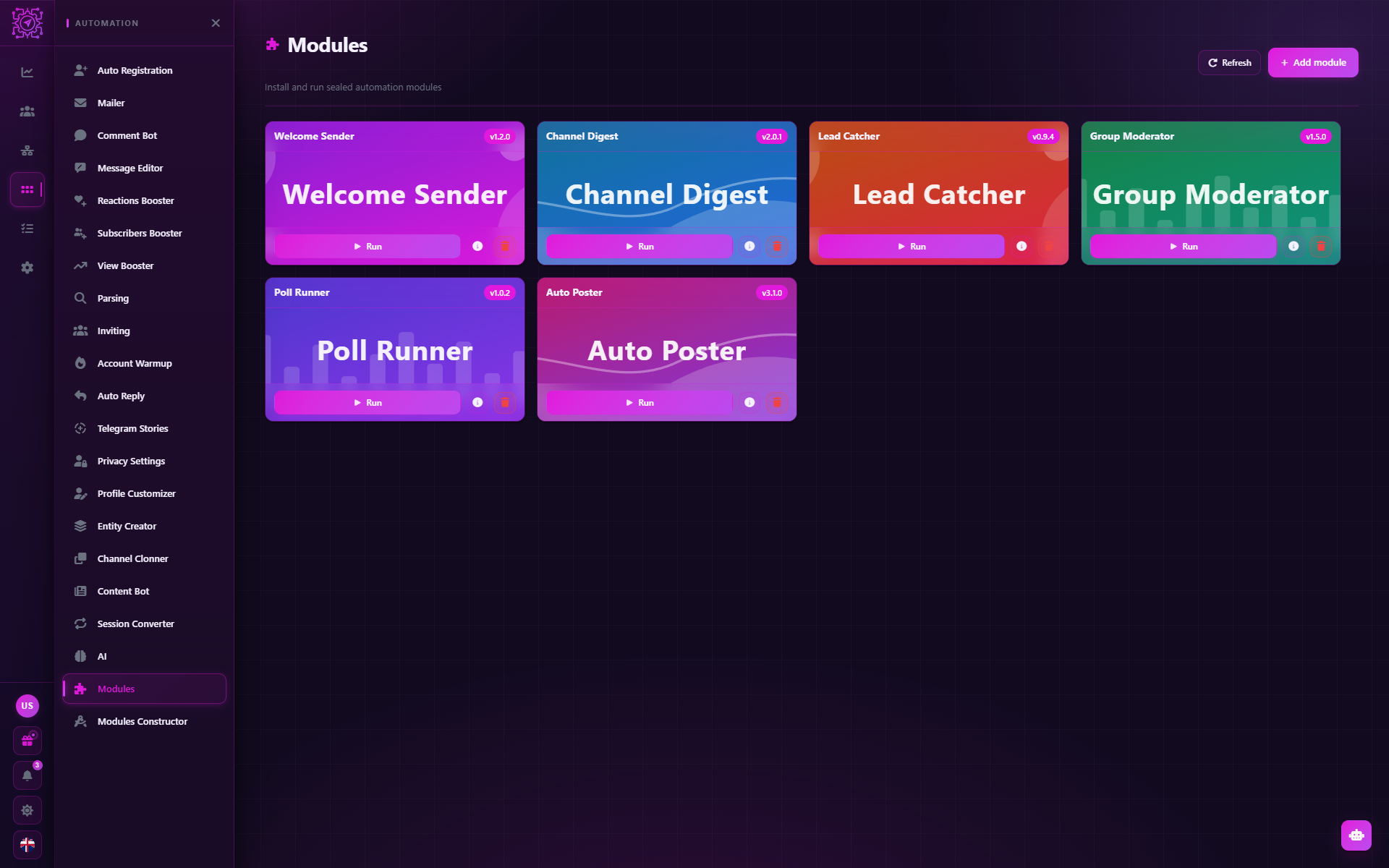
What's on the tab
Modules are shown as cards: name, description, cover, Author, Version and File — the path to the module on disk.
| Button | What it does |
|---|---|
| Add module | Choose one or more module files |
| Run | Open the new task window with this module |
| Delete | Remove the module from the list. The file on disk is not deleted |
| Refresh | Reload the list and check whether the files are in place |
How to install a module
Click Add module and choose .agm files.
Check the details. The Module details window shows the name, author and version. Invalid files are skipped with the message "Skipped invalid module(s)".
Confirm. The module appears as a card in the library.
If such a module is already installed, the window offers to Replace it — this is how a module is updated to a new version.
How to run a module
Click Run on the card — the new task window opens in Modules mode with the module selected. Below it is the module's own settings form: its author defined it. Fill in the required fields, set the number of threads and click Create.
You can also run a module from the Tasks tab: New Task → the Modules mode → Module. From then on the task works like any other: card, monitor, log — see Tasks. Threads split the selected accounts among themselves, and the task ends by itself when every thread has finished its work; the module gets the accounts' proxies together with the accounts.
Which modes a module needs
A module is built from the same actions as the built-in modes, and each action belongs to some mode. So a module that, for example, sends messages and parses members needs the Mailer and Parsing modes — through a plan or bought separately.
- When you add a module, the Module details window names the modes you don't have, instead of the add button.
- If the modes are gone — for example, the plan ended — the module's card is locked, and Run becomes unavailable. The card shows which modes are missing.
Things to know
- The library stores a path, not the module itself. If you move, rename or delete the file, the card stays but is marked Unavailable. Keep modules in a permanent folder.
- A module is sealed. You can't view or change its scenario from the library. Changes are made by the author, who releases a new version.
- Pro or Max plan required. On Free the tab is visible but locked: "Modules are not available on your plan".
A module runs someone else's scenario
A module works with your accounts and files the way its author wrote it. There is no way to check what is inside a sealed module, so install modules only from sources you trust.
Common questions
Where do I get modules?
Create them in the Modules Constructor or get an .agm file from an author you
trust.
Why is a module "Unavailable"?
The module file was moved, renamed or deleted. Put the file back, or delete the card and add the module again from the new folder.
Why can't I add or run a module?
You don't have the modes the module uses, or the plan isn't Pro/Max. The module window names what is missing.
Can I buy Modules separately?
No. Modules and the Modules Constructor come only with the Pro and Max plans. Accounts that bought them while they were on sale keep them for good.
Updated
Parsing
The Parsing mode in Multogram: collecting group members and messages from channels and chats — once or while watching for new messages, with keyword and date filters and export to CSV, XLSX, JSON or SQLite.
Modules Constructor
The Modules Constructor tab in Multogram: creating your own automation modules in a visual editor — your own logic and your own settings form. .agmp projects and finished .agm modules, recent modules, requirements and tips.