Modules Constructor
The Modules Constructor tab in Multogram: creating your own automation modules in a visual editor — your own logic and your own settings form. .agmp projects and finished .agm modules, recent modules, requirements and tips.
Where in the app
Access
Accounts
Restriction risk
The Modules Constructor is a tool for those who need more than the built-in modes. In a visual editor you build your own module: a scenario — the working logic made of ready-made actions — and a settings form the user will see. A finished module is installed and run on the Modules tab. The full guide is in the Modules Constructor section.
If you just need to run a ready module, go to the Modules tab.
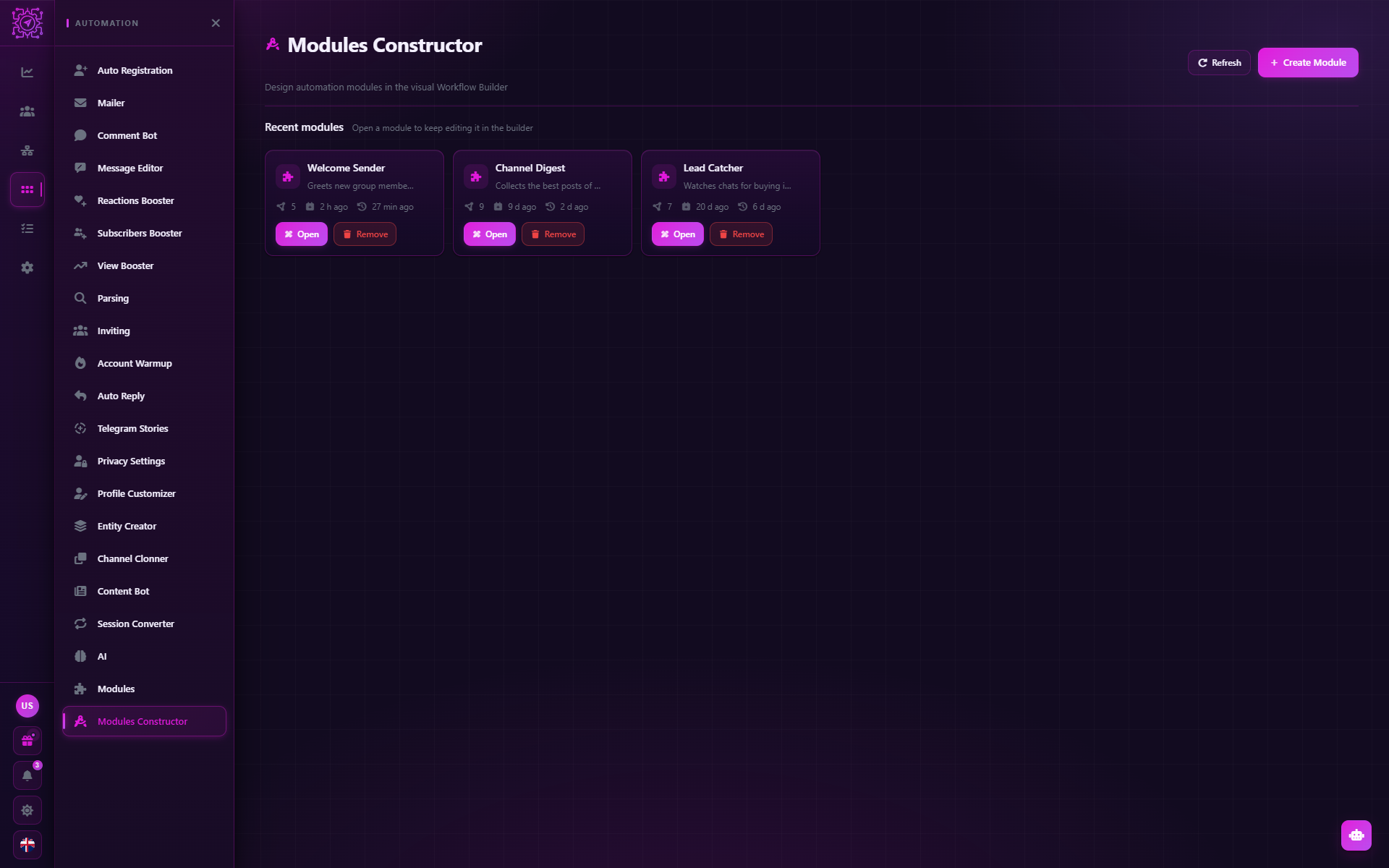
What's on the tab
Recent modules — cards of the projects you have worked on: name, description, Created and Updated dates.
| Button | What it does |
|---|---|
| Create Module | Opens the Workflow Builder editor in a separate window for a new module |
| Open | Opens the module in the editor to continue working on it |
| Edit description | Edits the card's description without opening the editor |
| Delete | Removes the module from the recent list |
| Refresh | Reloads the list |
How a module is built
Create a module — the editor window opens with a template: choosing accounts, handing them out to threads and signing in to each account are already built.
Build the scenario — the logic from ready-made actions: working with Telegram, files, the network, conditions, loops, variables.
Add settings fields — resources: text, numbers, lists, checkboxes, file pickers. They automatically make up the form the user fills in before running.
Save the project — it is stored as an .agmp file and appears in Recent modules.
Build the module — a sealed .agm file that is installed on the Modules tab.
A step-by-step example is in Your first module; the window, scenario, form, threads, building and the action reference are in the Modules Constructor section.
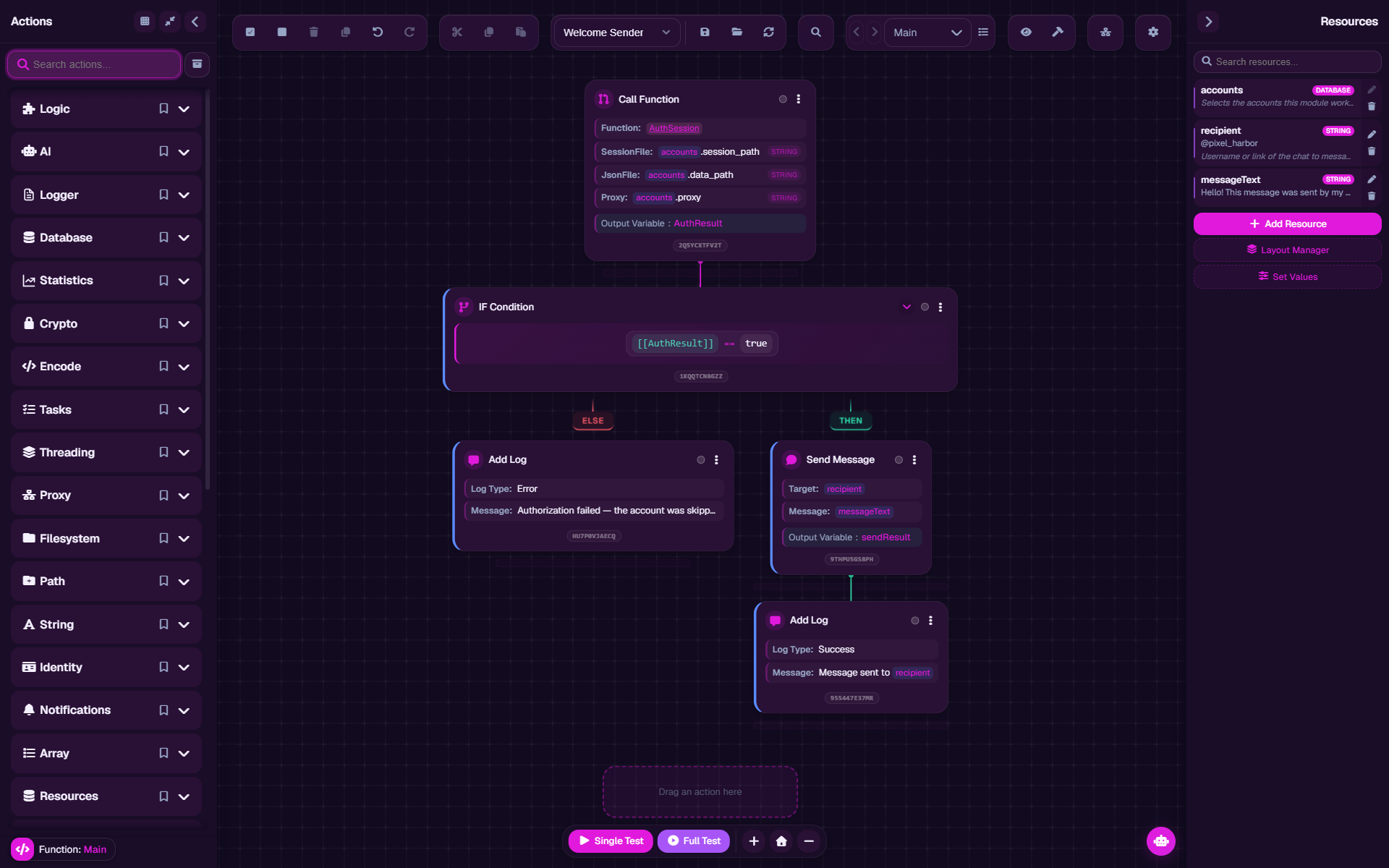
Available actions
The editor offers the actions of the modes your account has. Actions of the other modes are shown grayed out, and a tooltip names the mode they need. A finished module "remembers" which modes it uses and will require them from everyone who installs it. Which actions belong to which modes is in the Telegram reference.
Requirements
- Pro or Max plan. On Free the tab is visible but locked: "Modules Constructor is not available on your plan".
- A project and a module are different files.
.agmpis an editable project,.agmis a sealed build for users. A sealed module can't be unpacked back into a project.
Keep the sources
Lose the .agmp project file and you lose the ability to change the module — it will have to be built
again from scratch. Keep projects separately from finished modules and make backups.
Common questions
Do I need to know how to program?
No. The scenario is built from ready-made actions, and the settings form from resources. Code is needed only for non-standard data processing — see Your own code. Other questions are in Questions and problems.
Why doesn't the constructor open?
The plan isn't Pro/Max, or the application can't open the editor window. The message on the screen names the reason; if it keeps happening, write to support.
Can I give a module to another person?
Yes, hand over the .agm file. To run it, the recipient needs the Pro or Max plan and the modes the
module uses.
Updated
Modules
The Modules tab in Multogram: the library of installed modules (.agm) — ready automation scenarios with their own settings. How to install, run, update and remove a module, which modes a module needs and why it may be unavailable.
Modules Constructor
The guide to the Multogram Modules Constructor: how to build your own Telegram automation module — a scenario from ready-made actions, a settings form from resources, a test and a build into an .agm file. How a module is structured, key concepts and the workflow.