Message Editor
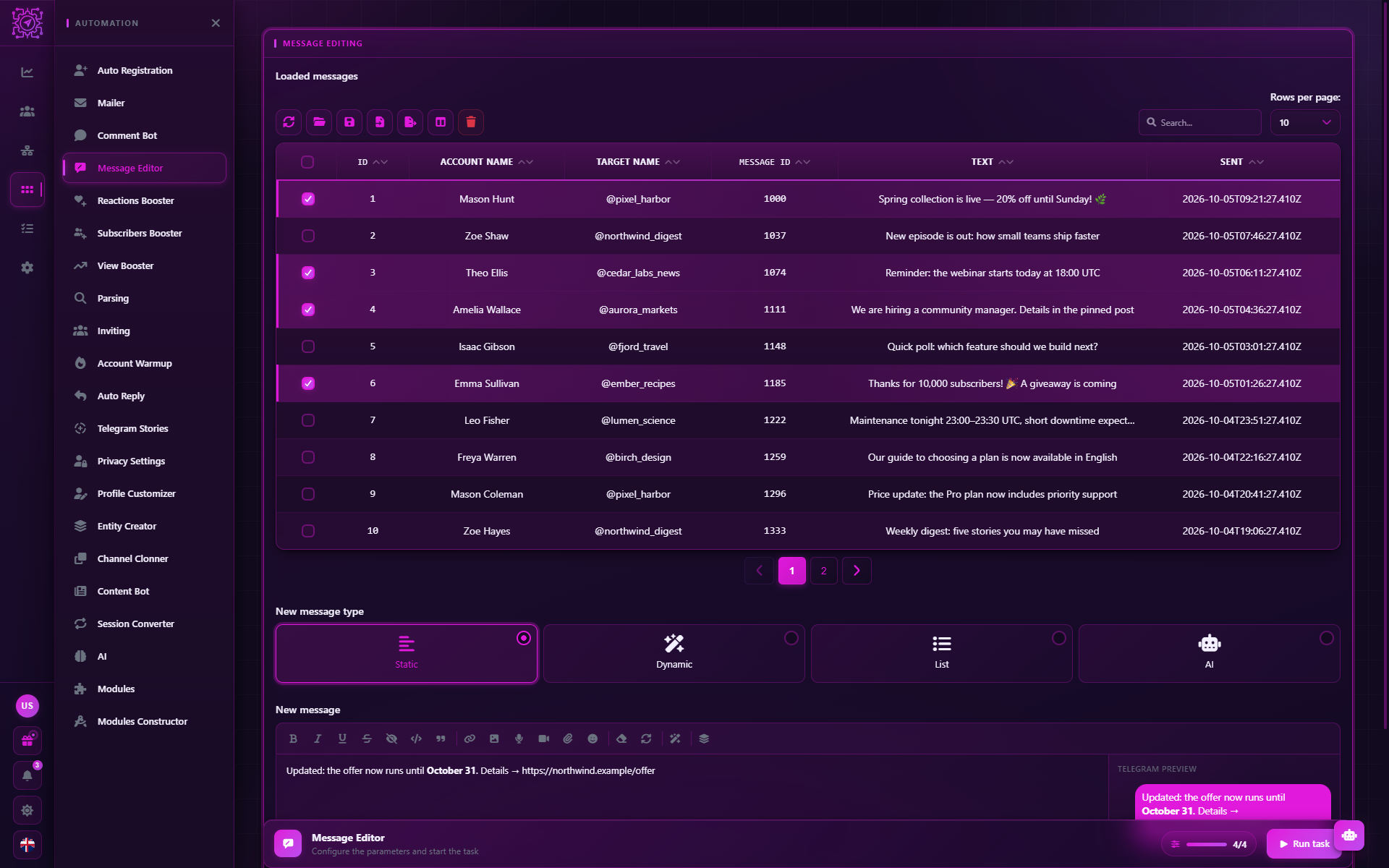
The Message Editor mode in Multogram: bulk editing of messages and comments that were already sent. It takes the database saved by Mailer or Comment Bot and rewrites the text from the same account that sent it.
Where in the app
Access
Accounts
Restriction risk
Message Editor fixes messages your accounts have already sent: replace a link, update a price, correct a typo in hundreds of messages and comments at once. The edit is made by the same account that sent the message.
What you need in advance
The editor works only with messages saved to a database. Turn on Save sent
messages and set the Messages folder in Mailer or
Comment Bot before sending. Each task gets its own .db database
file there.
Messages sent without saving can't be edited with this mode.
Quick setup
Load the database. In the Loaded messages table, click Load Database and choose
a .db file from the messages folder.
Tick the messages you need to fix with the checkboxes in the table.
Choose the new text — the New message type and the field below it.
Start the task. You don't need to select accounts: the mode works in one thread and signs in to the right accounts by itself.
Settings
| Parameter | Default | What it does |
|---|---|---|
| Loaded messages | — | A table of sent messages: account, target, message ID, text, send time. The ticked rows are what will be fixed |
| New message type | Static | Static, Dynamic, List or AI |
| New message | — | The new text from the visual editor. For the Static type |
| Dynamic template | — | A template with spintax and tokens. For the Dynamic type |
| Replacement list (one per line) | — | Each message gets a random variant. For the List type |
| AI prompt | — | The instruction for the AI model for the new text. For the AI type |
| Delay between edits (sec) | 2–5 sec | The pause before each edit |
The old text: {old}
In the Dynamic, List and AI types the {old} marker is replaced with the message's previous text. This
lets you append rather than rewrite: the variant {old} (updated: new link https://…) keeps the message's
text and adds a note. In an AI prompt, {old} gives the model the original text: "Rewrite this
in a friendlier way: {old}".
The previous text is taken from the table row. If the row doesn't have it, the application reads the current text of the message itself in Telegram.
The text types are described in detail in Texts and templates.
How it works
- A pause from the Delay between edits.
- The next ticked row is taken — each row is processed once.
- The application signs in to the account that sent this message and replaces the message's text with the new one.
- The log shows "Message #… edited" or the reason for the error. In the table the fixed row gets the Edited mark and the new text.
The task ends when all ticked rows are processed.
Limitations
- Time to edit. Telegram allows editing messages in private chats and groups within 48 hours after sending. Older messages won't change.
- The account must work. If the account's session is no longer valid, its messages can't be fixed.
Recommendations
- Test on one message. Tick one row, start, and check the result in Telegram.
- Edit in batches. Tick the rows you need — for example, through a text search — and edit only them.
- Turn on saving in advance. If a mailing might need fixing, turn on saving before you start it.
Common questions
Why is the table empty?
The database isn't loaded or has no messages. Saving must be on in Mailer or
Comment Bot at the time of sending; then load the .db file from the Messages folder.
Why did the task finish right away?
No rows were ticked — the mode edits only ticked ones. Tick the messages.
Why didn't the edit go through?
Common reasons: more than 48 hours have passed since sending, the message was deleted, the account's session is invalid, the new text is the same as the old one. The reason is in the task log.
Can I edit the same messages again?
Yes, start the task again with the same ticked rows and a new text.
Do I need to select accounts in the task?
No. Each message is edited by the account that sent it — it is recorded in the database row.
Updated
Auto Reply
The Auto Reply mode in Multogram: accounts answer incoming messages by themselves — by rules with conditions (contains, equals, regular expression) or with AI that decides whether to answer and writes the reply. Sources, intervals and rule setup.
Reactions Booster
The Reactions Booster mode in Multogram: each selected account puts a random reaction from your palette on every post from the list. Settings, the post link format, delays and reaction restrictions in channels.