Mass actions
Actions on many accounts from the database at once: checking accounts and spam restrictions, changing the profile, the 2FA cloud password and ending other sessions, attaching proxies and exporting accounts as .session + .json or ZIP.
Mass actions are operations on selected rows of the accounts database: check which accounts are alive, change the profile, set a cloud password, attach a proxy or export accounts as files. They run straight from the Accounts tab, without creating a task, and are available on any plan.
How to run one
Tick the accounts in the table on the Accounts tab.
Open the catalog. Click the Mass actions button (the layers icon) on the bar above the table. The window shows how many accounts are selected.
Pick an action and fill in its parameters. The How it works block shows whether the action signs in to the account and which table columns it overwrites.
Set the threads and click Run. Threads — how many accounts are processed at the same time: up to 16, but no more than the number selected.
While the action runs, a progress indicator spins above the AI assistant button. The table is locked against edits during that time, and each account's result is written into its row right away. You can stop a run with the Stop button. Only one mass action runs on a table at a time.
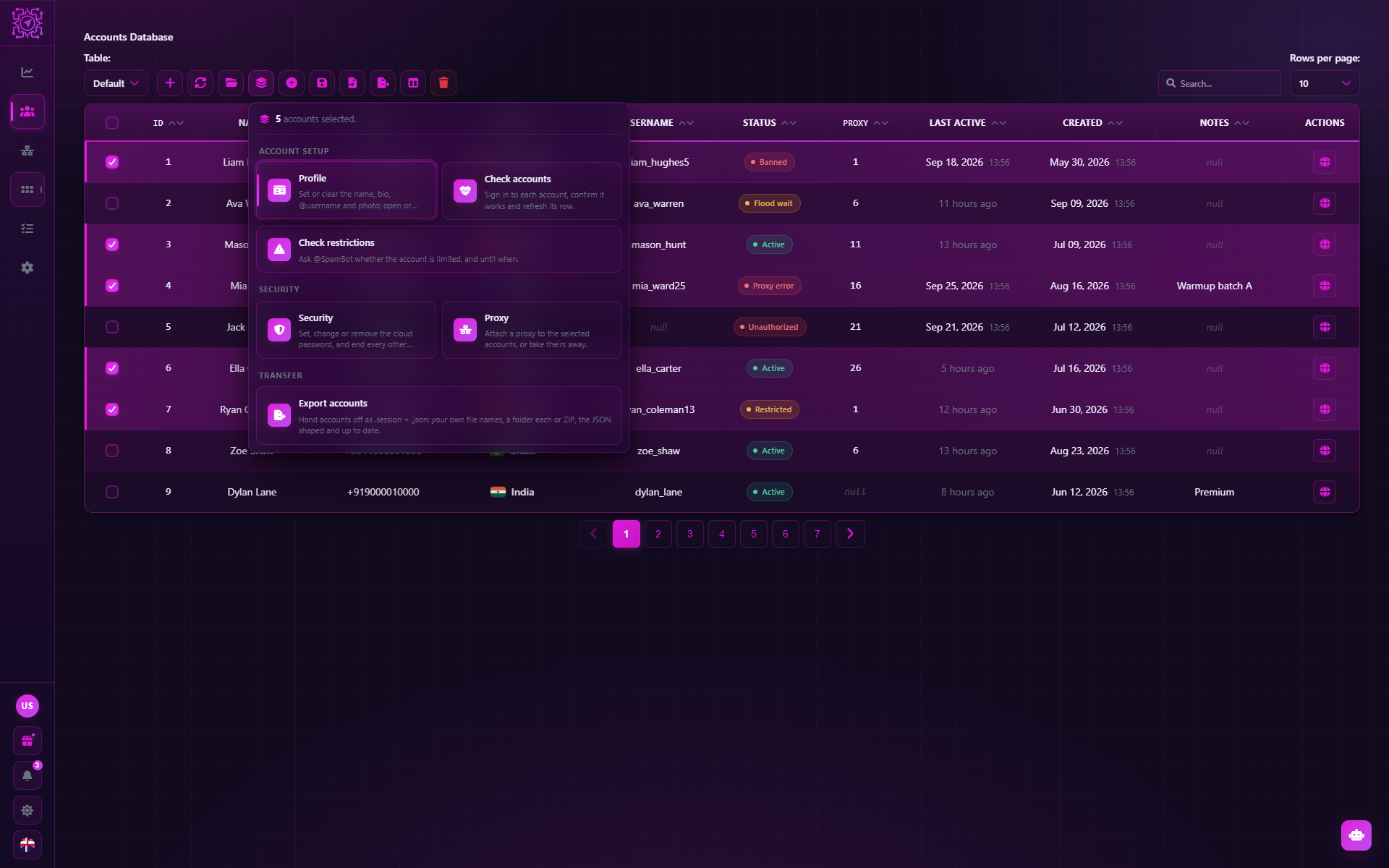
Which actions there are
| Group | Action | Signs in | What it does |
|---|---|---|---|
| Account setup | Profile | Yes | First name, last name, bio, @username, photo and phone visibility |
| Account setup | Check accounts | Yes | Checks that the account works and updates its row |
| Account setup | Check restrictions | Yes | Asks @SpamBot whether there is a spam restriction |
| Security | Security | Yes | Cloud password (2FA) and ending other sessions |
| Security | Proxy | No | Attaches a proxy to the accounts or removes it |
| Transfer | Export accounts | No | Saves accounts as .session + .json files, optionally in a ZIP |
Each account is processed separately: an error on one does not stop the others.
Check accounts
Signs in to each account and checks that it works. Then updates the row: Status, Last active, First name, Last name, Username, Phone and Country. The account itself is not changed. There are no parameters — only the number of threads.
Use it after importing accounts and before large tasks: this keeps dead sessions out of the work.
Check restrictions
Sends /start from each account to the @SpamBot bot and reads the answer. The row gets the
Active status (no restrictions) or Restricted, and the result message shows the end date
if the restriction is temporary. If the bot's answer can't be read unambiguously, the status does not change.
A spam restriction means the account can't write to strangers. Such accounts are better kept out of mailings and inviting until the restriction is lifted.
Profile
Changes the profile of every selected account. First tick which fields to change — the rest stay as they are.
| Field | Value source |
|---|---|
| First name, Last name | Same for all, Random (a name generator: language and gender) or From a list (each account gets its own value) |
| Bio | Same for all or From a list |
| Username | Generate from a pattern or Same for all |
| Photo | Image files: each account gets a random one. Without files the avatar is removed |
| Phone number privacy | Who can see the number: Leave as it is, Everybody, My contacts, Nobody |
Username generation works from a pattern like user<LowerLetter><LowerLetter><Digit><Digit>:
the pattern is expanded anew for each account, so each gets its own @username. All template
tokens are on the Texts and templates page.
An empty field clears, it doesn't skip
If you tick a field and leave its value empty, it is removed: an empty bio erases the bio. And one @username can belong to only one account — with the Same for all source the first account takes it, and the others don't get it.
After the edit the row shows the profile as Telegram accepted it: a taken username does not make it into the table.
Security
Manages the cloud password (two-step verification) and other sessions.
| Parameter | What it does |
|---|---|
| Cloud password (2FA) → Set | Sets a password on accounts that don't have one |
| Cloud password (2FA) → Change | Replaces the existing password with a new one |
| Cloud password (2FA) → Remove | Removes the password |
| New password, Hint | The new password and its hint (the hint is optional) |
| Current password | From table — taken from each account's 2FA password column; Enter manually — one password for all |
| End every other session | Signs the account out on all other devices. Your .session file keeps working |
Change and Remove need the current password. If some accounts have an empty 2FA password column, the window warns you: the operation won't run for them. A wrong current password is a refused operation, not a broken account: the account is not marked with an error.
After a successful change the 2FA password column updates by itself.
Why end other sessions
If the accounts were bought or handed over to you, the previous owner may still have access. "End every other session" together with a new cloud password closes that access.
Proxy
Attaches the same proxy to every selected account (Attach) or removes the proxy (Remove) — the accounts then connect directly.
The action rewrites the proxy in the account's .json file and in the Proxy column. It does not sign in
to the account, so even a dead proxy can be replaced. If an account has no .json file, the action won't run for
it.
Keep in mind: one proxy for many accounts means one IP address for all of them. For mass work it is better to give each account its own proxy.
Export accounts
Saves the selected accounts as a .session + .json pair of files, to hand them over or move them.
The accounts themselves are not touched.
| Parameter | Options |
|---|---|
| Folder | Where to save |
| Structure | Side by side — all files in one folder; Folder per account — each account gets its own folder |
| Pack into ZIP | Archive per account or One archive. The Archive name can use {date}, {time} and {count} |
| Archive password | Optional. With a password every file in the archive is encrypted with AES-256. An empty field means an archive without a password |
| File names | Phone number, Username or a Template with substitutions (sequence number, date, column values) |
| Take data from the table | Write the current phone number, @username, name and 2FA password from the table into the JSON |
| JSON keys | Exclude a key, rename it, set a fixed value or add a new one |
The Preview block shows the tree of the future files and the resulting JSON. Names are computed for the whole
selection at once: if there is no name from the template, the phone number is used, and duplicates get a _2, _3 ending.
The export settings are remembered.
A password-protected archive opens in 7-Zip, WinRAR and other archivers; Windows Explorer can't open such an archive. The password is not saved with the export settings — you enter it again for each run, so write it down before sending the archive.
Why an action didn't go through
Each account's result is visible in the action window. Common reasons:
| Message | What it means |
|---|---|
| The session did not start / The session could not be opened | The session is invalid, there is no connection or the proxy doesn't work |
| The account data could not be read | The sign-in worked, but Telegram didn't return the profile data |
| The profile change did not go through | Telegram rejected the edit — for example, the username is taken |
| The cloud password was refused / Wrong current password | The current 2FA password is wrong |
| The account has no JSON file / .session file | A required file is missing — check the JSON data and Session file columns |
| @SpamBot did not answer / @SpamBot's answer could not be read | Repeat the check later |
| The files could not be written / the archive could not be created | No access to the folder or not enough space |
| A mass action is already running on this table | Wait for the current run to finish |
Common questions
How many threads should I set?
For checking accounts — 5–10; for profile and security edits — fewer, 2–5. Each thread is a separate sign-in to Telegram; too many simultaneous sign-ins from one IP look suspicious.
Can I close the window while the action runs?
Yes. The action keeps working, and the indicator above the assistant button shows the progress. Click it to open the window again.
Why did only one account get the username?
A username is unique across all of Telegram. To give usernames to many accounts, use the Generate source — the pattern gives each its own.
Which is better: the Profile mass action or the Profile Customizer mode?
It is one job done two ways. The mass action is handy for a quick edit of selected rows straight from the table. The Profile Customizer mode runs as a task: it can be scheduled and run on large pools like any other mode.
Updated
Accounts
The Telegram accounts database in Multogram: how to add accounts (sign-in by phone number, ready-made session files, bulk import), what the columns and statuses mean, how to attach a proxy and open an account in the messenger.
Proxies
The proxies database in Multogram: why proxies are needed, which types and formats are supported, how to add proxies one at a time or as a list, check them and attach them to accounts.